How to offer WPMaven on your hosting
For hosting companies. Your customers press a button in your panel, describe their business, and their AI team builds it and runs it on their own WordPress, on your hosting. You earn a share of what they pay us, every month they stay.
This page is the whole setup, in order. Your named contact goes through it with you on your onboarding call. Your customers have their own step-by-step guide: give them How to build your business on your own hosting.
1. Join the partner program
Write to partners@wpmaven.ai, or apply from the partner page. Send us:
- your company name, as your customers know it;
- the email address you will sign in with;
- the address of your panel’s WordPress installer, where your customers install WordPress;
- the address of the page where your customers move to a bigger hosting plan, if you have one.
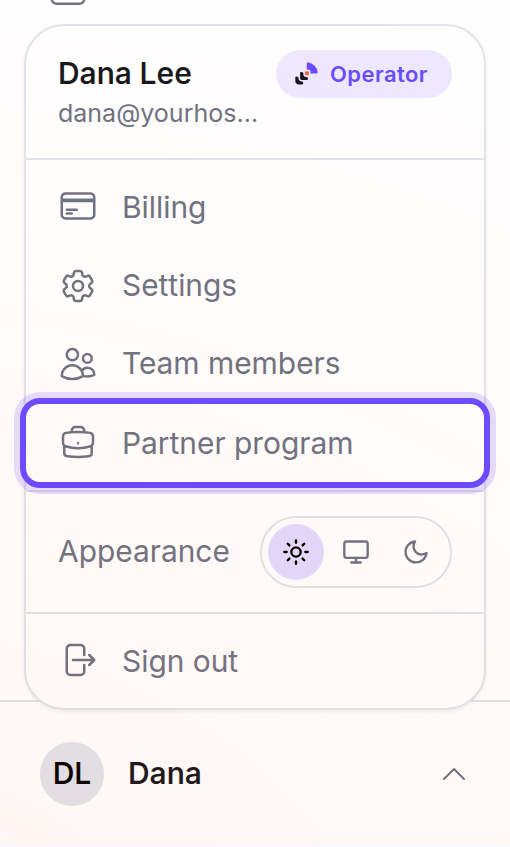
We set up your partner account. Then sign in to the WPMaven dashboard, dashboard.wpmaven.ai, with that email address: with Continue with Google, or with a one-time code we email you. Open the account menu at the bottom of the sidebar, the button with your name, and choose Partner program.
2. Copy your code and your links
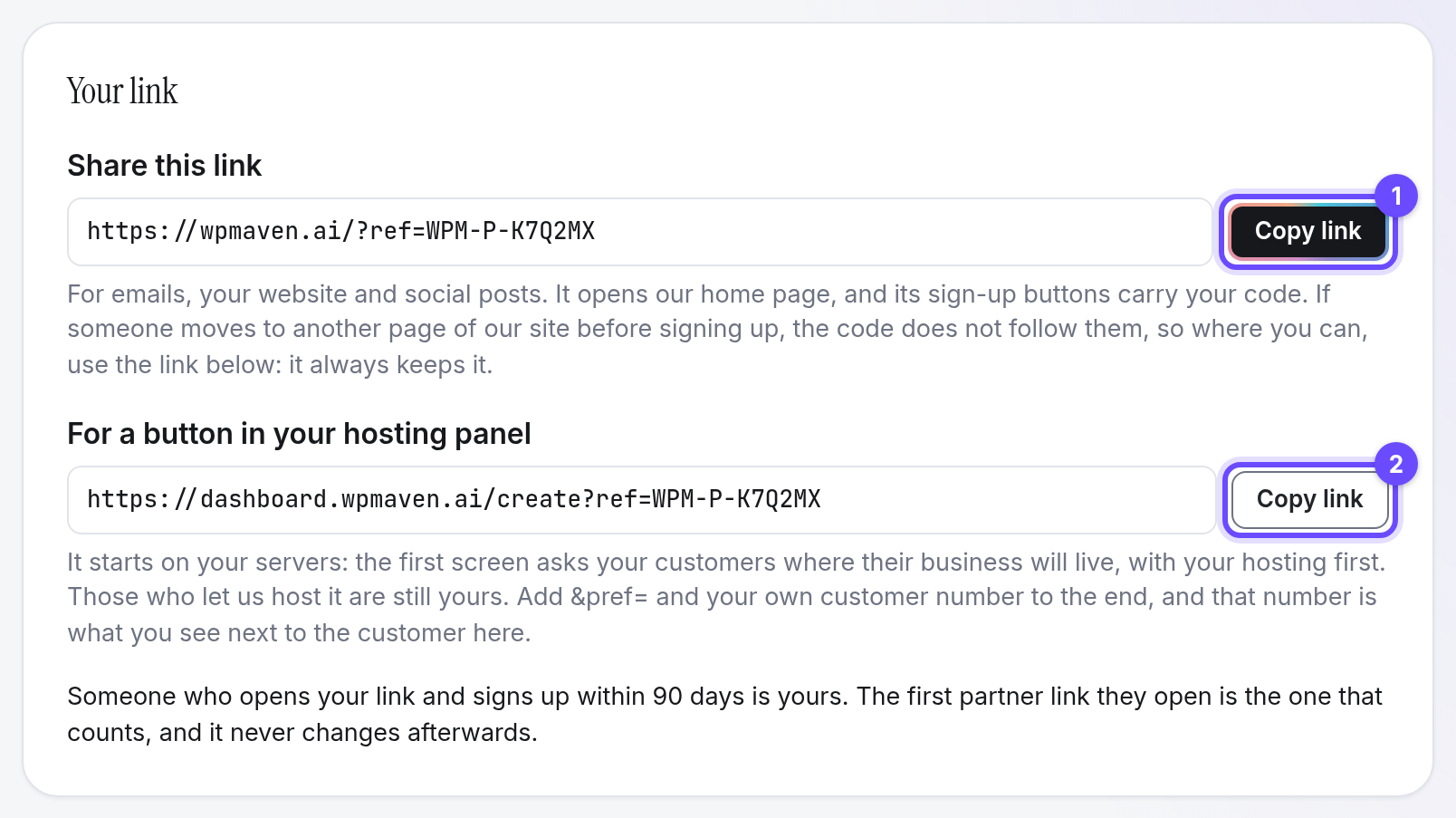
Your partner code looks like WPM-P-K7Q2MX. On Partner program, under
Your link, each link has a Copy link button:
- Share this link:
https://wpmaven.ai/?ref=and your code, for your emails, your website and your social posts. - For a button in your hosting panel:
https://dashboard.wpmaven.ai/create?ref=and your code. This is your build link: it starts every customer on your hosting (see What your customers see). - Your own dashboard address, once it is live (step 3). Your build link then opens there.
Add &pref= and your own customer number to the build link, for example
https://dashboard.wpmaven.ai/create?ref=WPM-P-K7Q2MX&pref=acct-12345. That
number is what you see next to the customer on your Partner program page.
It takes letters, digits and _ . : -, up to 64 characters.
Someone who opens your link and signs up within 90 days is yours, and so is someone who creates their account from a WordPress your panel installed with your code. See Who counts as yours.
3. Put your name on it
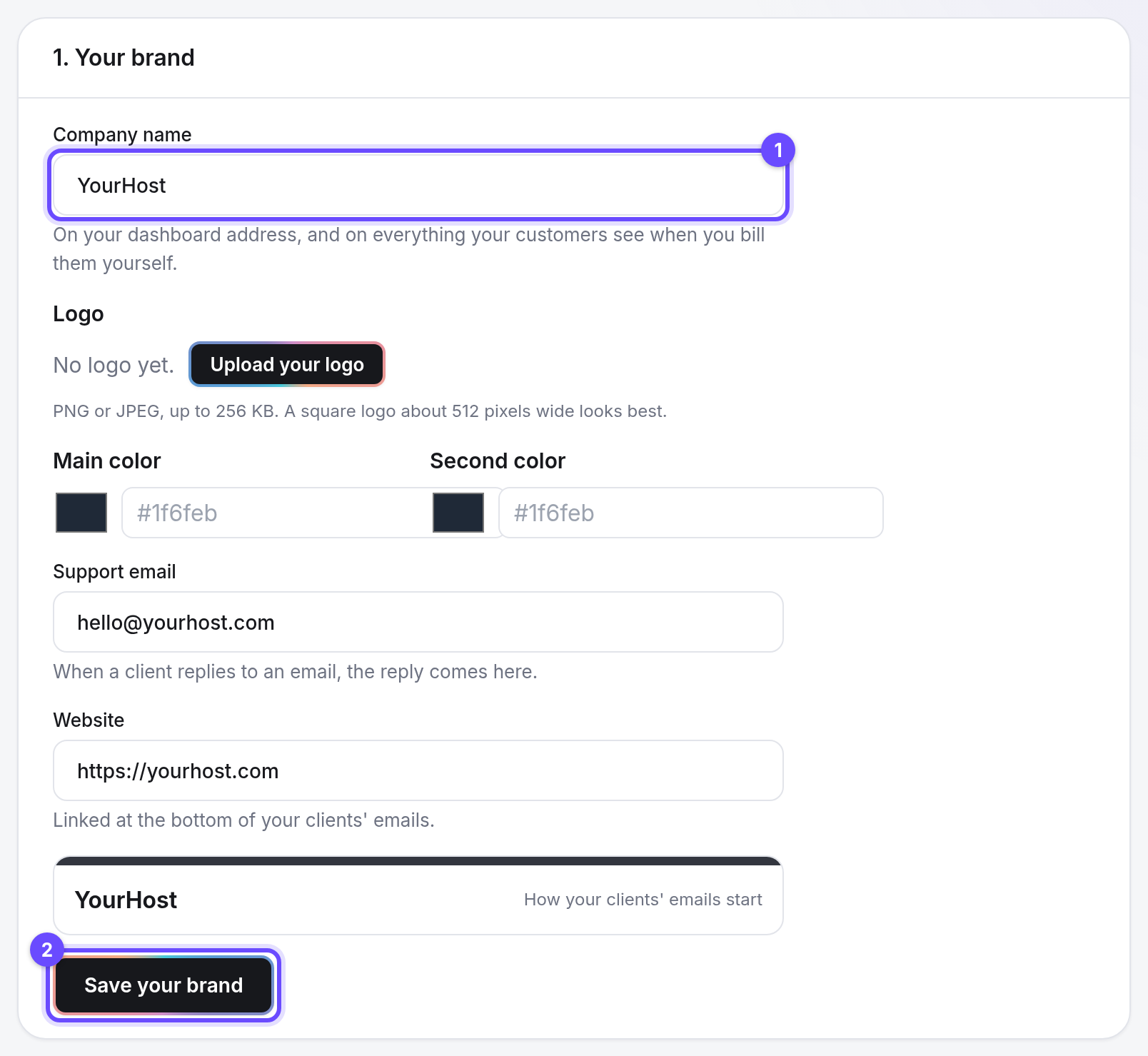
Open Settings, then White label, or press Open White label in Settings on your Partner program page. Three of its steps are yours:
- Your brand: your Company name, your logo, your two colors, your support email and your website, then Save your brand. Your company name is the one your customers read on their first screen: On my YourHost hosting.
- Your sending domain: the emails to your customers go from an address on your own domain.
- Your dashboard address: your dashboard on an address of yours, like sites.yourhost.com, with your name and logo. Your customers sign up and sign in there, and someone who signs up there is your customer, with no link needed.
Each step in detail is in How to set up White label, and what your name changes for your customers on each route is in Put your name on it.
4. Add WPMaven to your WordPress installer
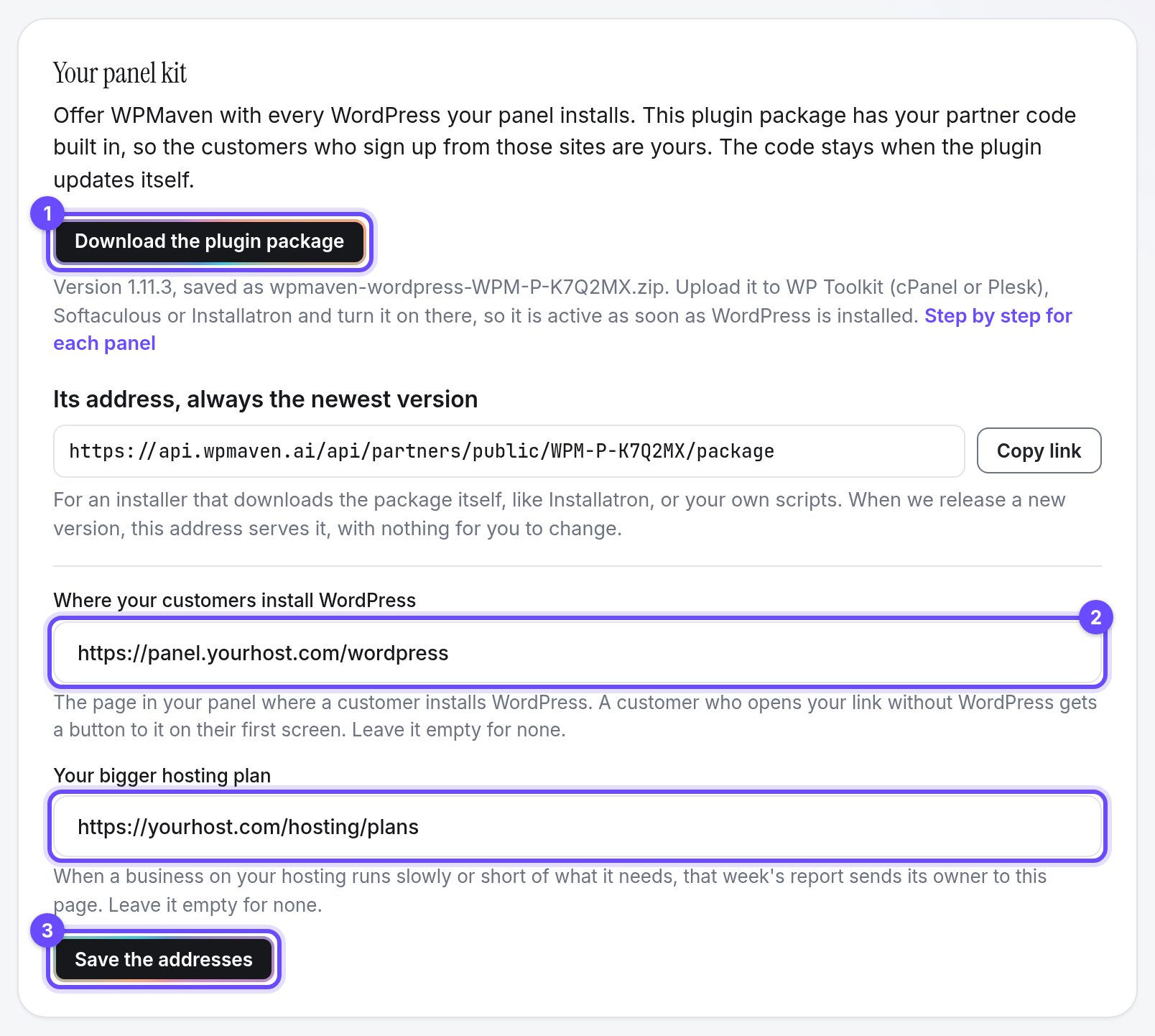
On your Partner program page, under Your panel kit, choose
Download the plugin package: wpmaven-wordpress-<your code>.zip, the
WPMaven plugin with your partner code built in. In the same section, set
Where your customers install WordPress (the page in your panel your
customers without WordPress are sent to) and Your bigger hosting plan, then
choose Save the addresses. Add it to the WordPress your panel installs, with WP Toolkit on cPanel
or Plesk, Softaculous, Installatron, WHMCS or WP-CLI, as described step by step
in
How to install WPMaven from your hosting panel.
Every WordPress your panel installs then comes with WPMaven, active, with your code. To see your own customer number next to these customers too, give each site your reference: see Add your own customer reference.
5. Add the button to your panel
Put a button where your customers start a site, in your panel or your client
area, with your build link behind it. Name it in your customers’ words, for
example “Build my business with AI”. When your panel can, add the customer’s
account number to the link as &pref=.
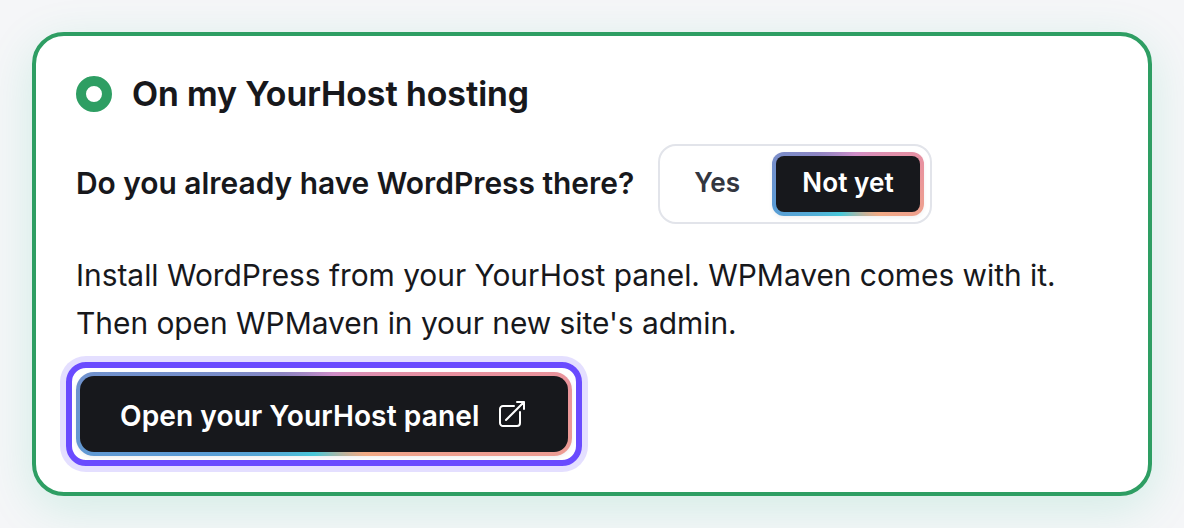
With the address of your installer (step 1), a customer who has no WordPress yet gets a button, Open your YourHost panel, that opens it.
What your customers see
Your build link opens on Where will your business live?, with On my YourHost hosting chosen first, under your company name. It asks Do you already have WordPress there?
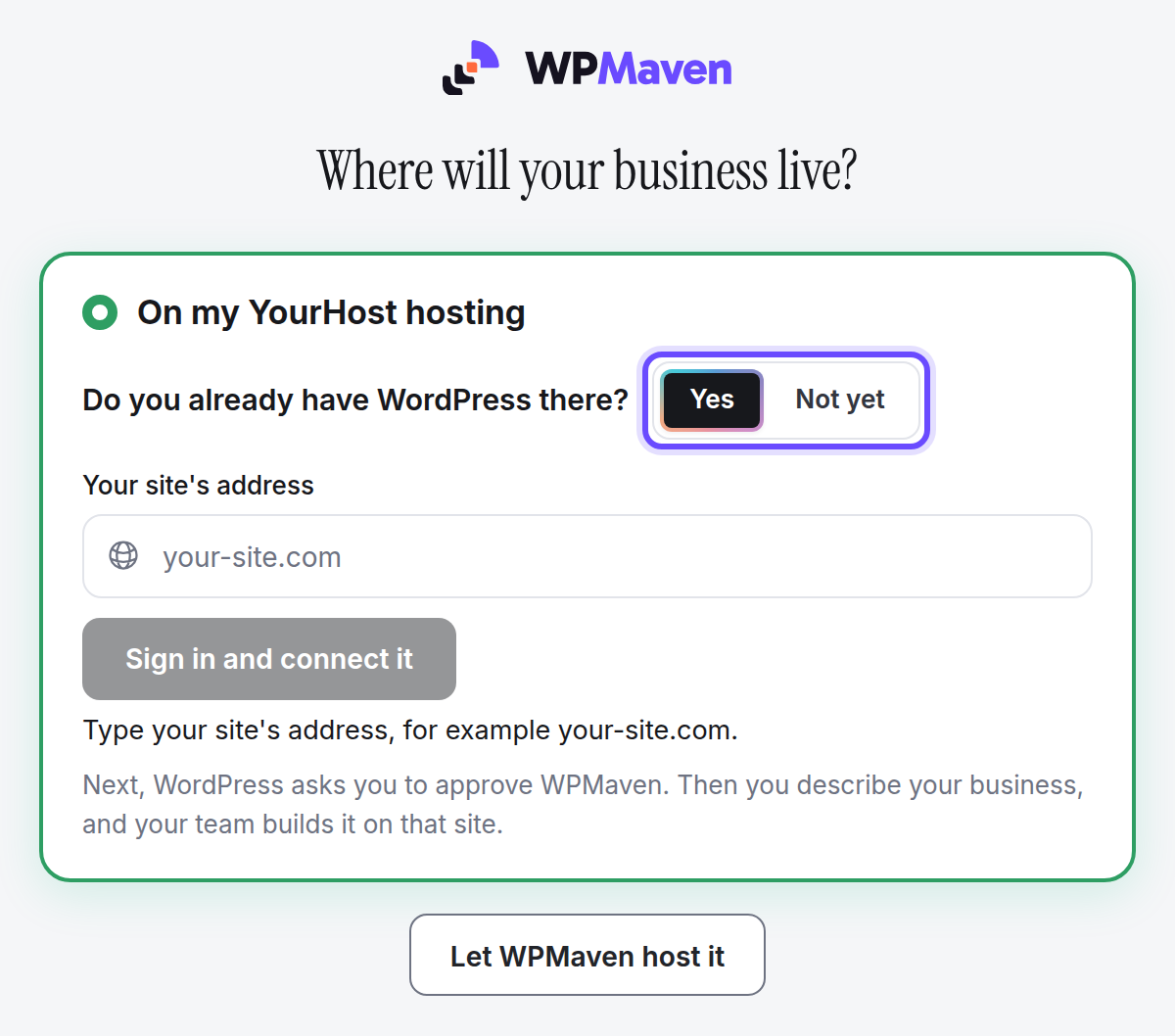
- Yes: the customer types Your site’s address and presses Sign in and connect it, or Connect my site when signed in. WordPress asks them to approve WPMaven, then they describe their business, and their team builds it on that site.
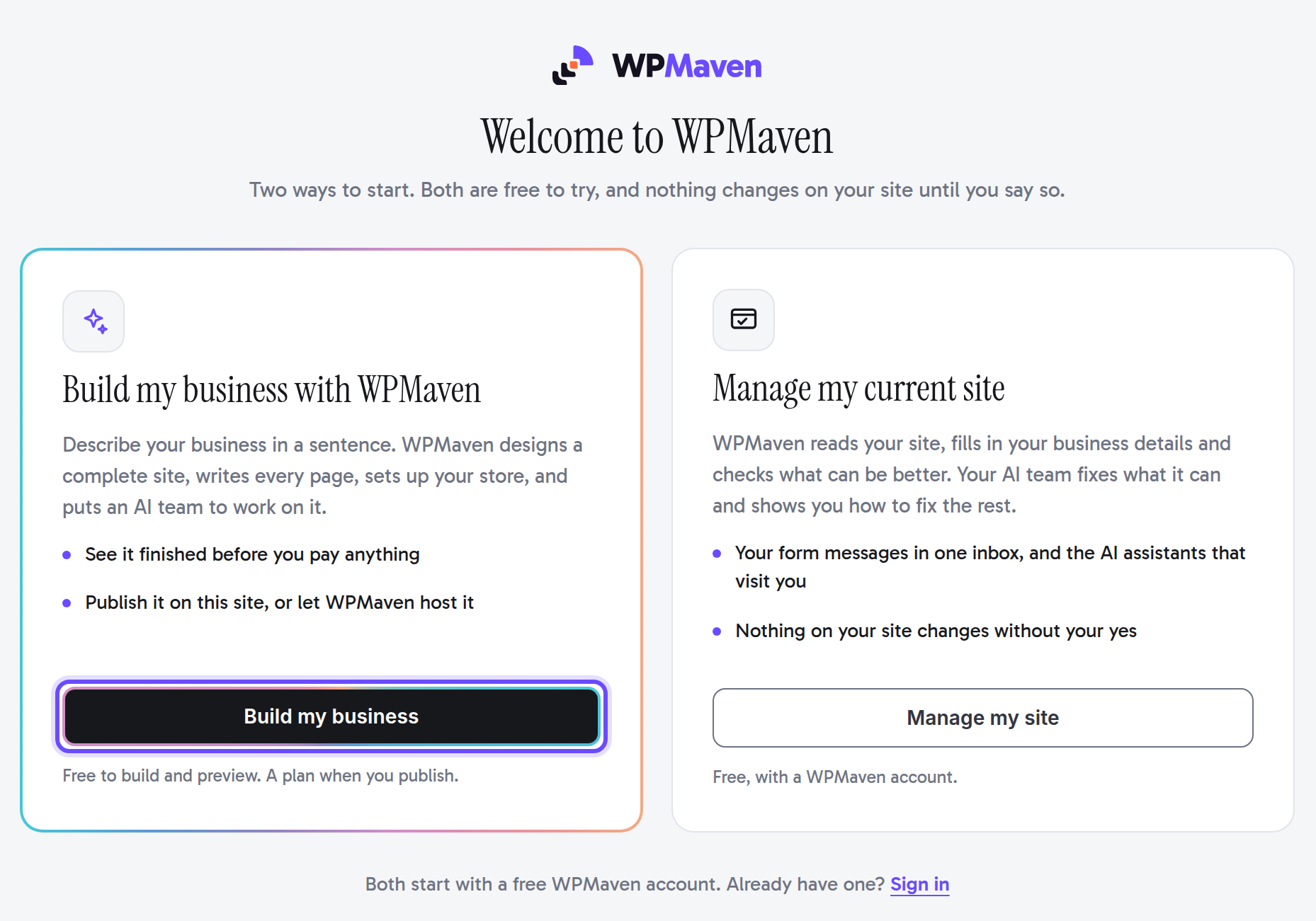
- Not yet: “Install WordPress from your YourHost panel. WPMaven comes with it. Then open WPMaven in your new site’s admin.” With Open your YourHost panel when you gave us your installer’s address. In their new WordPress, WPMaven in the menu opens Welcome to WPMaven, where Build my business starts the same way.
A customer can also choose to let WPMaven host the business. They stay your customer, and that business earns you the share of a business WPMaven hosts.
Building and previewing are free. Going live takes a plan: on monthly billing, Launch, Operator and Scale start with a $1 first week, one time only. The business then goes live on the customer’s own WordPress, on your hosting, and the posts, pages and products already there are kept.
On your own dashboard address, these screens carry your name and logo.
What your servers need
WPMaven works with the WordPress your panel installs. For each site:
- HTTPS, on the site’s public address. WordPress gives out application passwords only on a site served over HTTPS, and a customer who connects a WordPress they already have approves WPMaven with one.
- The customer is a full administrator of their WordPress. Only an administrator can connect a site.
- WordPress’s Authorize Application screen works. Application passwords stay switched on (some security plugins switch them off), and no HTTP Basic Authentication sits in front of the site: WordPress refuses application passwords behind it.
- WPMaven’s requests reach WordPress. Your firewall and your security
plugins let through WordPress’s REST API, at
/wp-json/and/?rest_route=/, and/wp-admin/admin-ajax.php, with their Authorization header. WPMaven’s requests to the site are signed, and the REST API also answers the customer’s browser while they connect. - The site can call out over HTTPS, to
api.wpmaven.aiamong others: the plugin reports there and updates itself. - WordPress’s scheduled tasks run, with WP-Cron or a server cron job that
calls
wp-cron.php: the plugin checks in every few minutes and sends its figures every hour. - PHP 8.0 or later and WordPress 6.5 or later.
Check it with a test customer
Before you announce it, walk through it once as a customer:
-
Open your build link in a private browser window, with a test number:
&pref=TEST-1at the end. -
Where will your business live? shows On my YourHost hosting. Choose Not yet, then Open your YourHost panel.
-
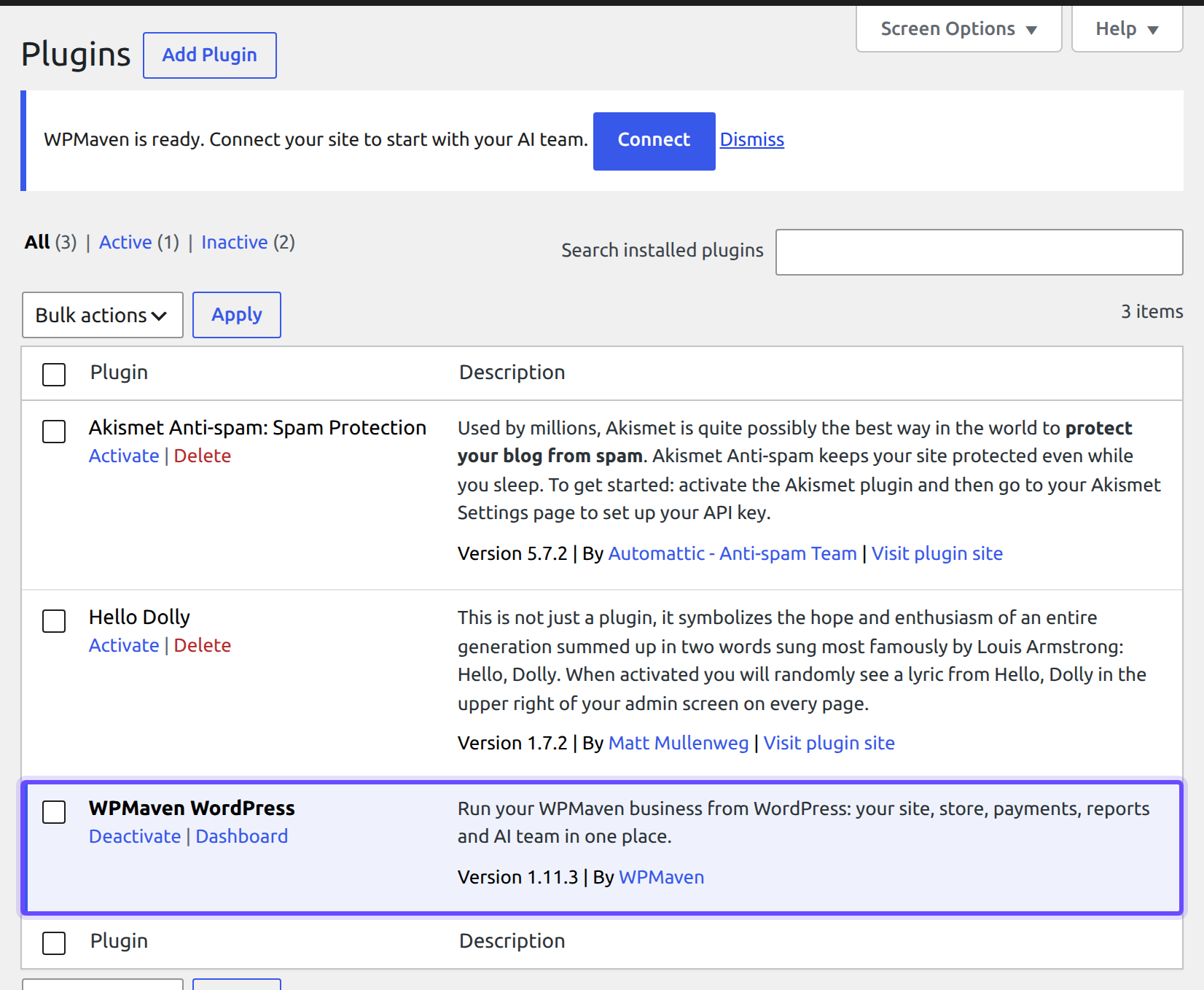
Install WordPress from your panel, as a customer would. In the new WordPress, Plugins shows WPMaven WordPress, active.
-
Open WPMaven in the menu and choose Build my business. Create the account with a test email address, then press Connect site.
-
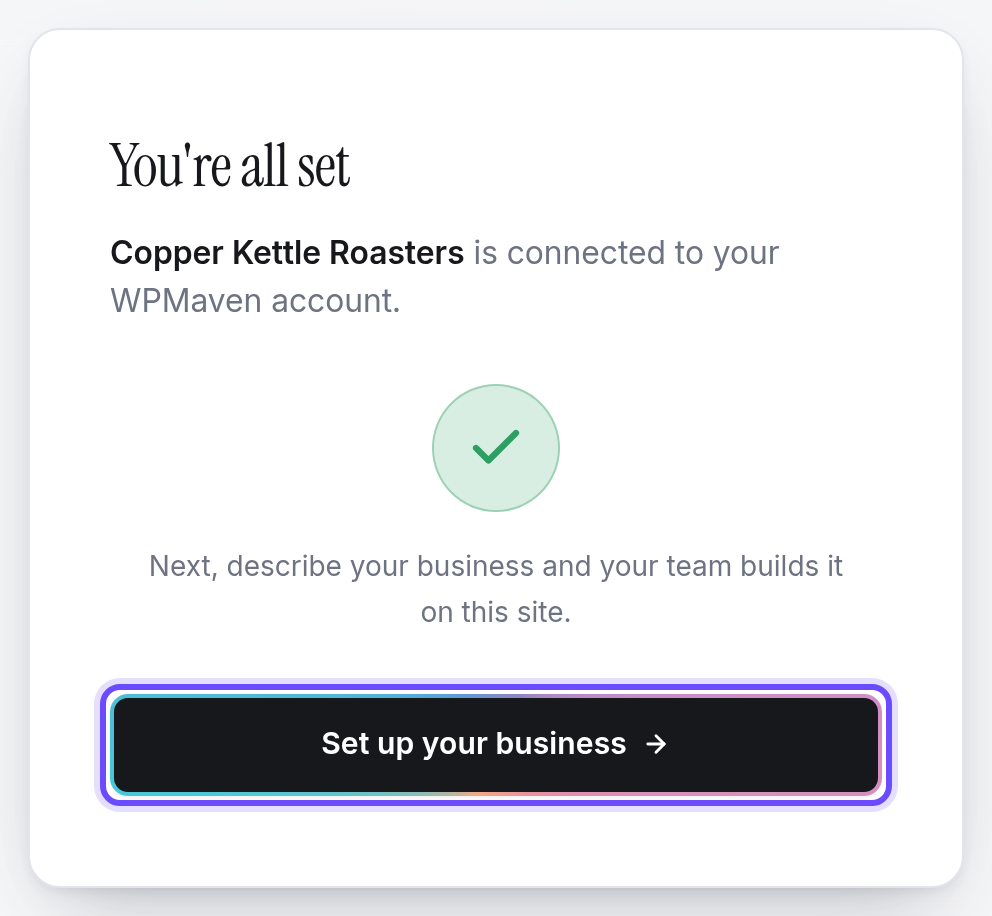
On You’re all set, press Set up your business: WPMaven opens the setup for the new site.
-
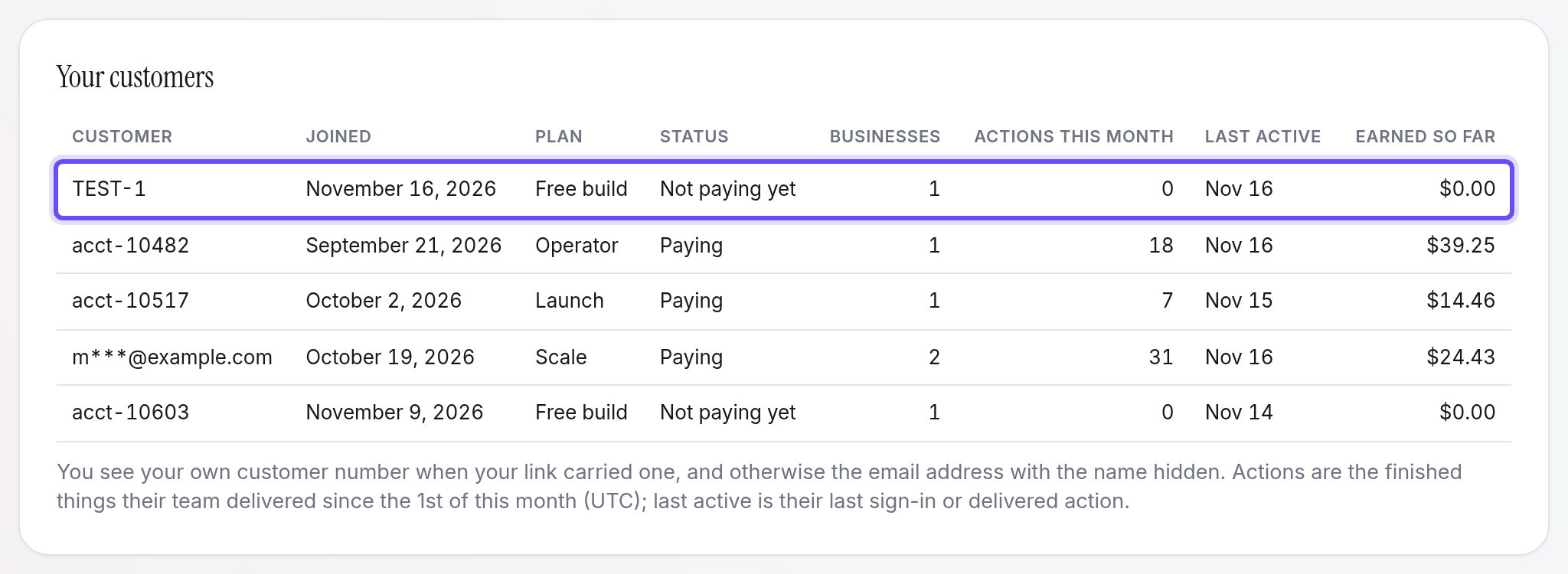
On your Partner program page, under Your customers, the test customer shows as TEST-1.
Walk through Yes too, on a test site that already has WordPress, to see the approve screen your customers see. The installer checks, such as your code on the site, are in Check that it works.
What stays yours
Your customers’ businesses run on your servers, and everything around them stays with you:
- Hosting and the customer. The site is the customer’s WordPress, in their hosting account with you.
- Backups. Your backup tools keep running as before. WPMaven adds its own
copy of the site every night, on the site’s own storage, in
wp-content/uploads/webmaven-backups(the newest three are kept), and one before each publish. - Updates. WordPress, its themes and its plugins update with your tools and WordPress’s own automatic updates, as before. The WPMaven plugin updates itself and keeps your code.
- Email. The site’s emails leave through your servers’ mail setup, as before, and your customers’ mailboxes stay with you.
- Domains and DNS. They stay with you, as they are.
What you earn
On revenue share, your customers pay us on their own card. Your share starts with their first full-price payment, after the $1 first week, and continues every month they stay: 20% on a business on your hosting, 25% from 100 paying customers and 30% from 500, and 15% on a business WPMaven hosts. Each month closes on the 1st (UTC) into a statement, and our team sends the payout by bank transfer. On wholesale, you bill your customers yourself, at your own price.
Your customers also get a bonus that only a hosting company brings them: A bonus for your customers. Every rule, the statements, the payouts and wholesale are in How to use the partner program.
Questions
Write to your named contact. The partner kit has the brand assets and the email templates for your announcement, and the partner training covers what to say.