Planora.
Digital planners, journals and templates, delivered as instant downloads.
The idea that was picked from the suggestions
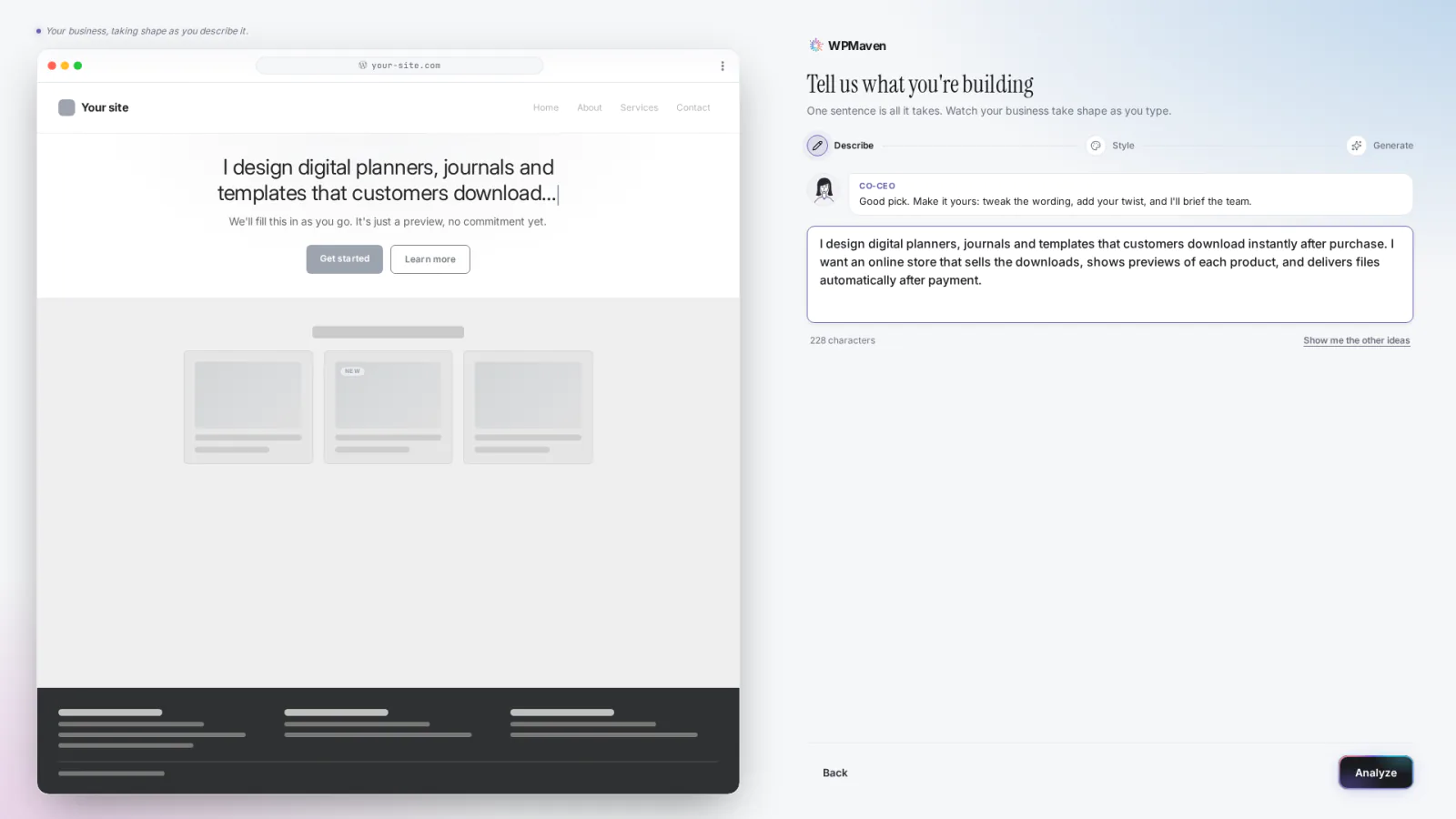
I design digital planners, journals and templates that customers download instantly after purchase. I want an online store that sells the downloads, shows previews of each product, and delivers files automatically after payment.
The result.
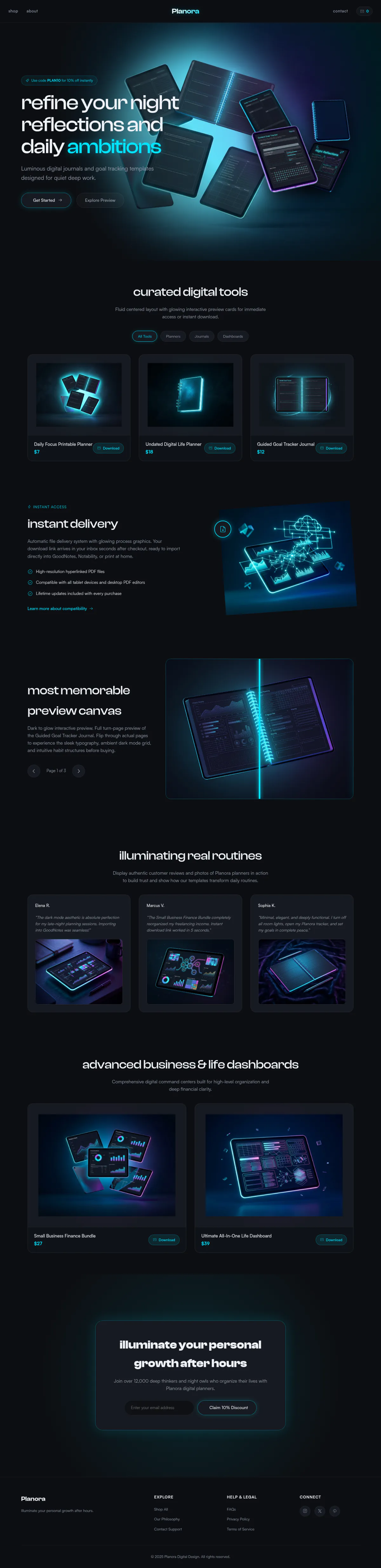
This is the full homepage WPMaven built, top to bottom. Scroll inside the frame, or press Play scroll.
The homepage
The shop page

Some images on this site were generated with AI.
How it was built, step by step.
Every screenshot below comes from the real build. Click one to see it larger.
-
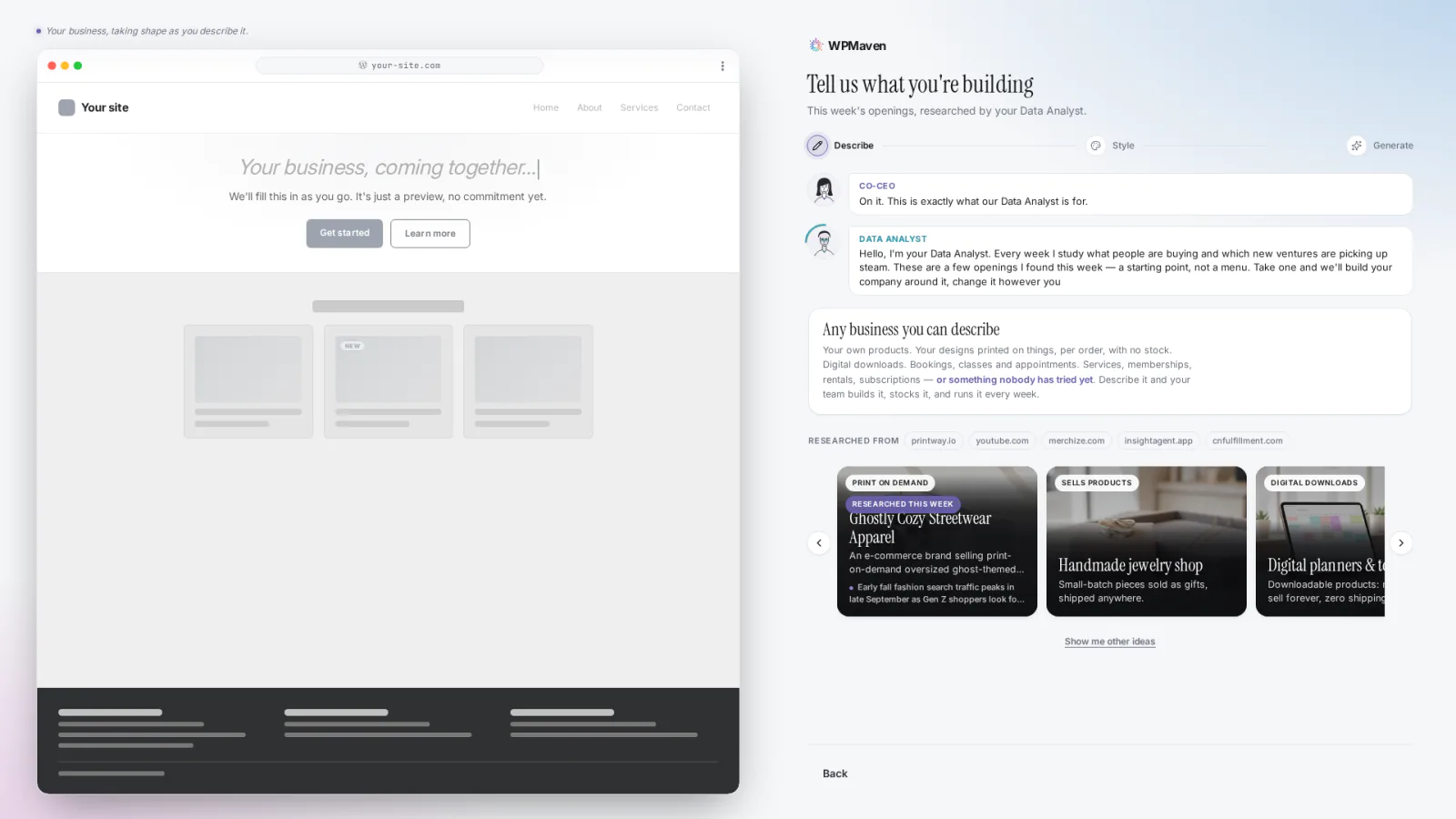
Describe the business
No idea yet? The suggestions screen offers openings to start from. Pick one and the box fills in for you. This one came from the suggestions, and you can edit the text before moving on.
-
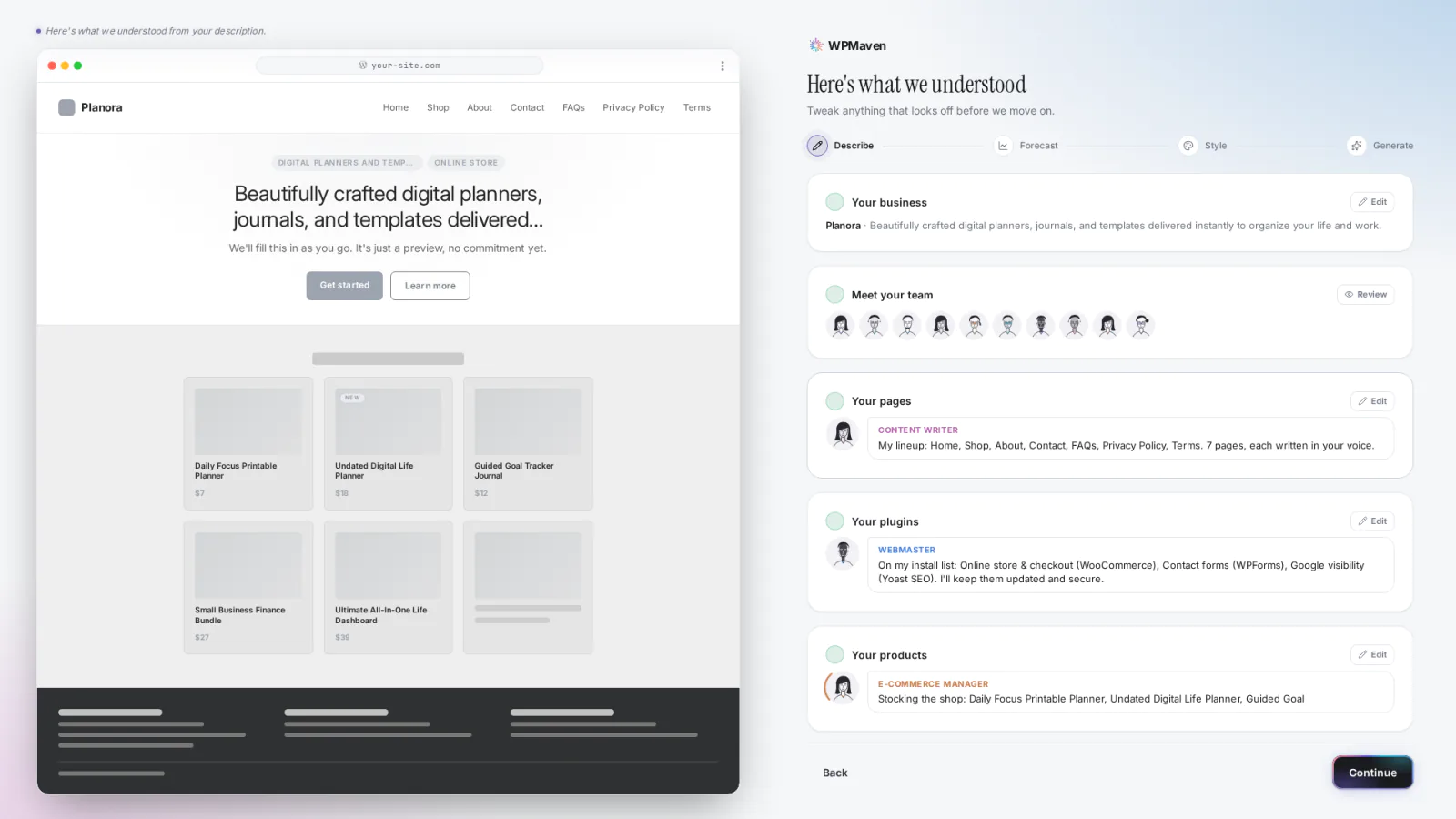
WPMaven reads it back
Before it builds anything, WPMaven reads the sentence back as a plan: the business, the team, the pages, the plugins (the add-ons the site runs on) and the first products. It named the business Planora, planned 7 pages (including FAQs and Terms) and lined up the store plugins. You can tweak anything before the build starts.
-
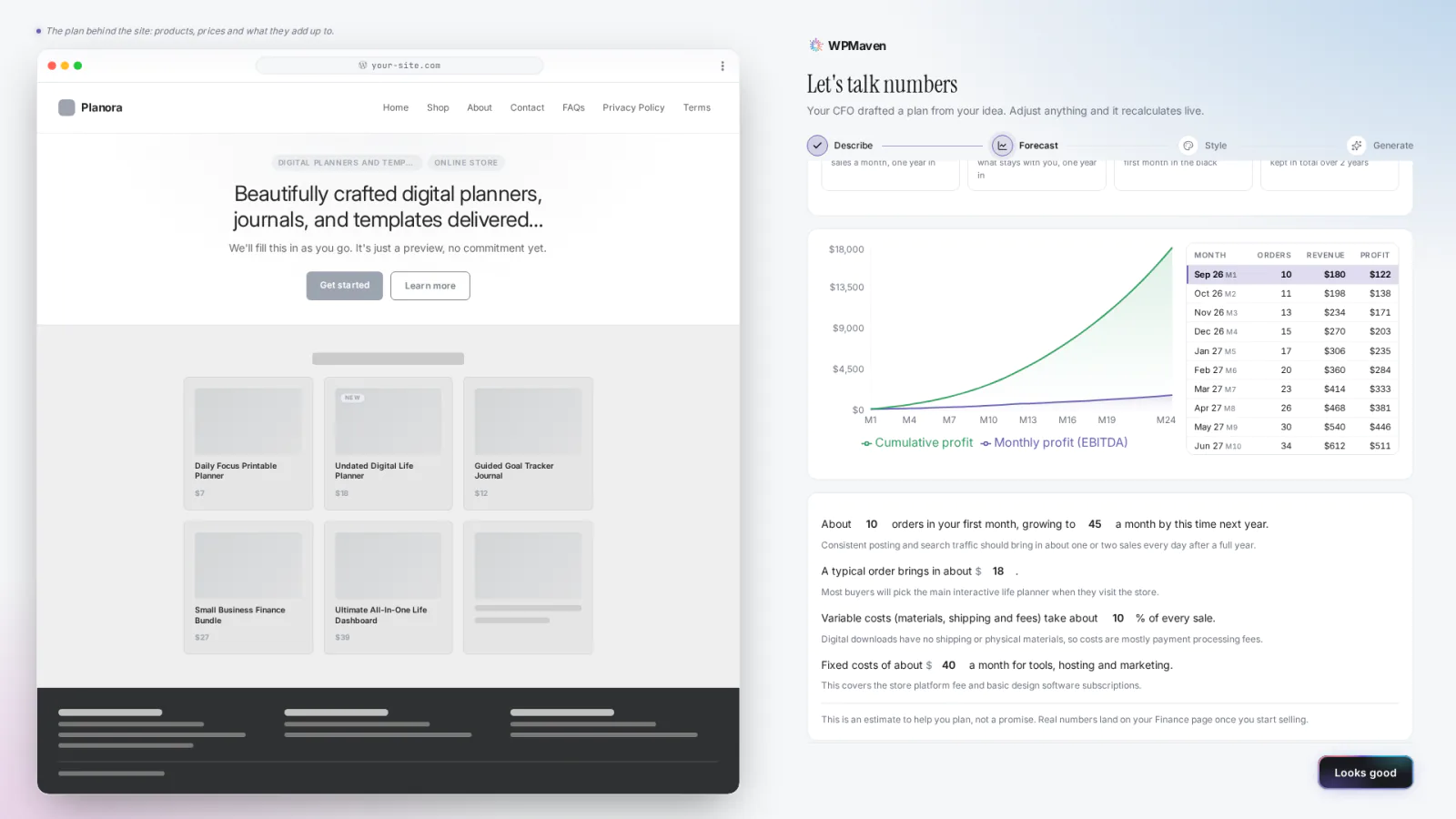
A first-year estimate
WPMaven drafts an estimate from your sentence: how many orders or bookings the first month might bring, how that could grow over a year, the usual size of one and the running costs. The chart carries on to two years. It is an estimate to help you plan, based on assumptions you can change. Once you start selling, your real numbers show next to it on your Home.
-
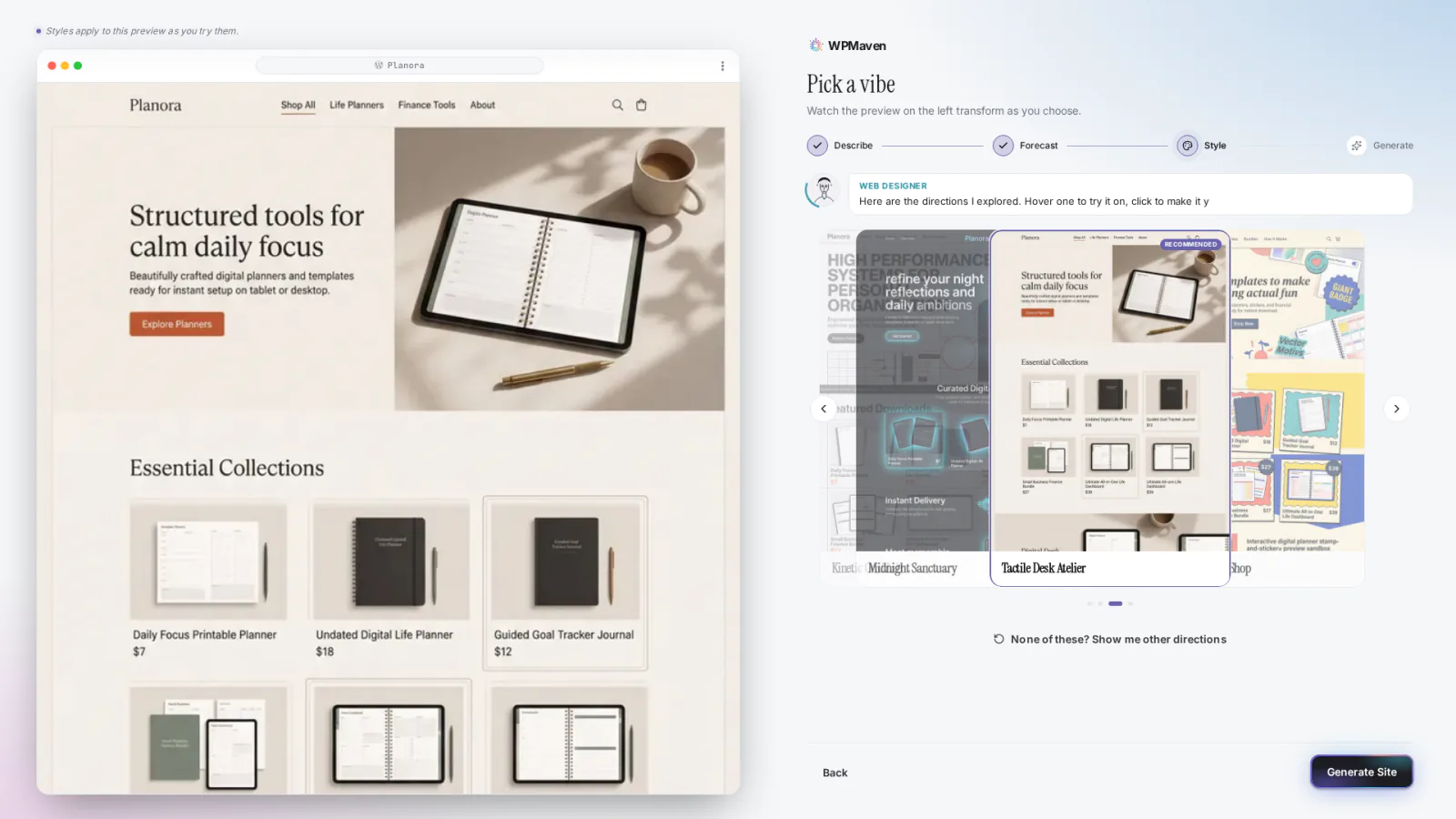
Pick a style
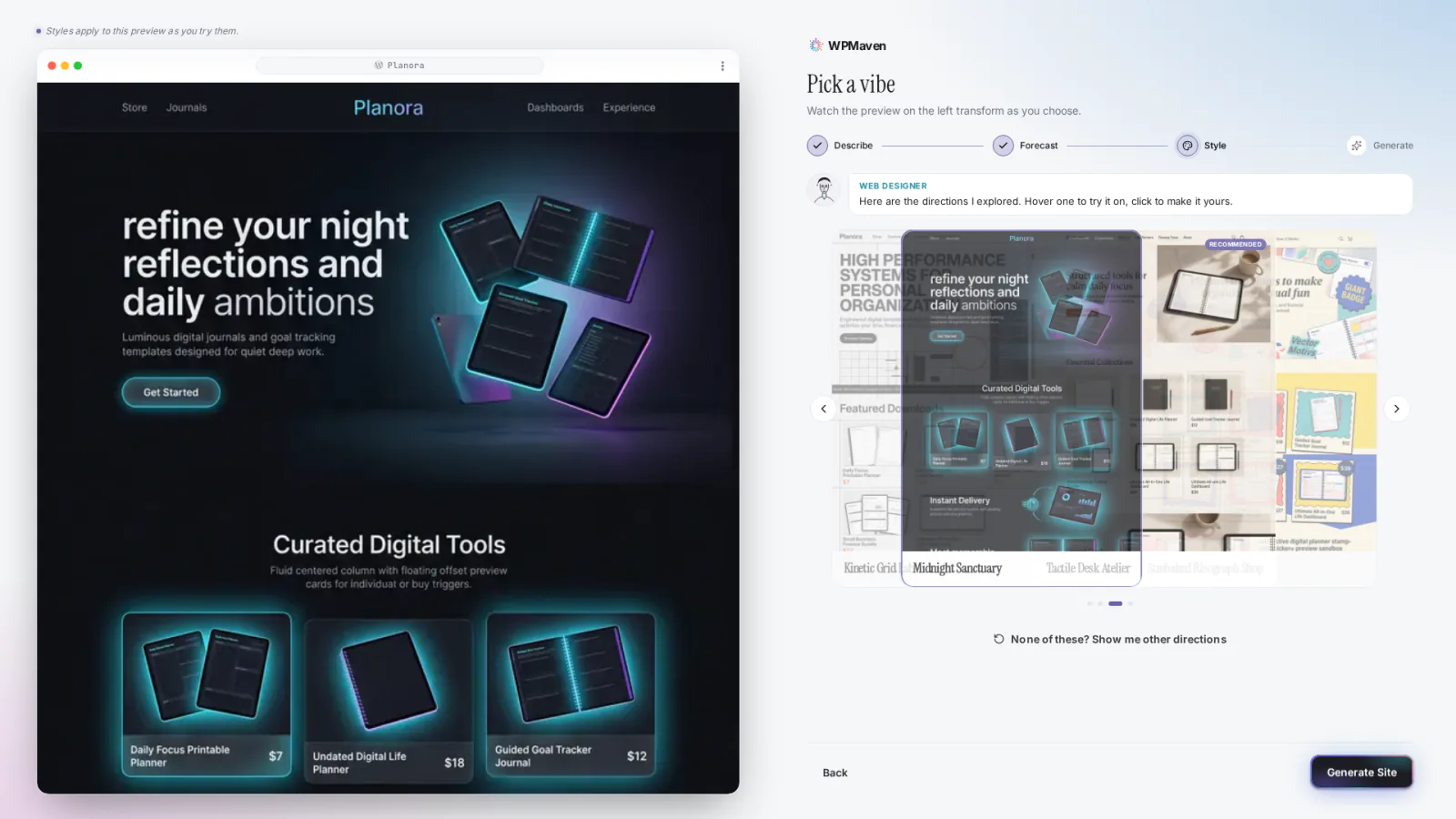
WPMaven explores four style directions and applies each one to the preview on the left as you try it. Hover one to try it on, click to choose it. Here the direction called Midnight Sanctuary was picked.
-
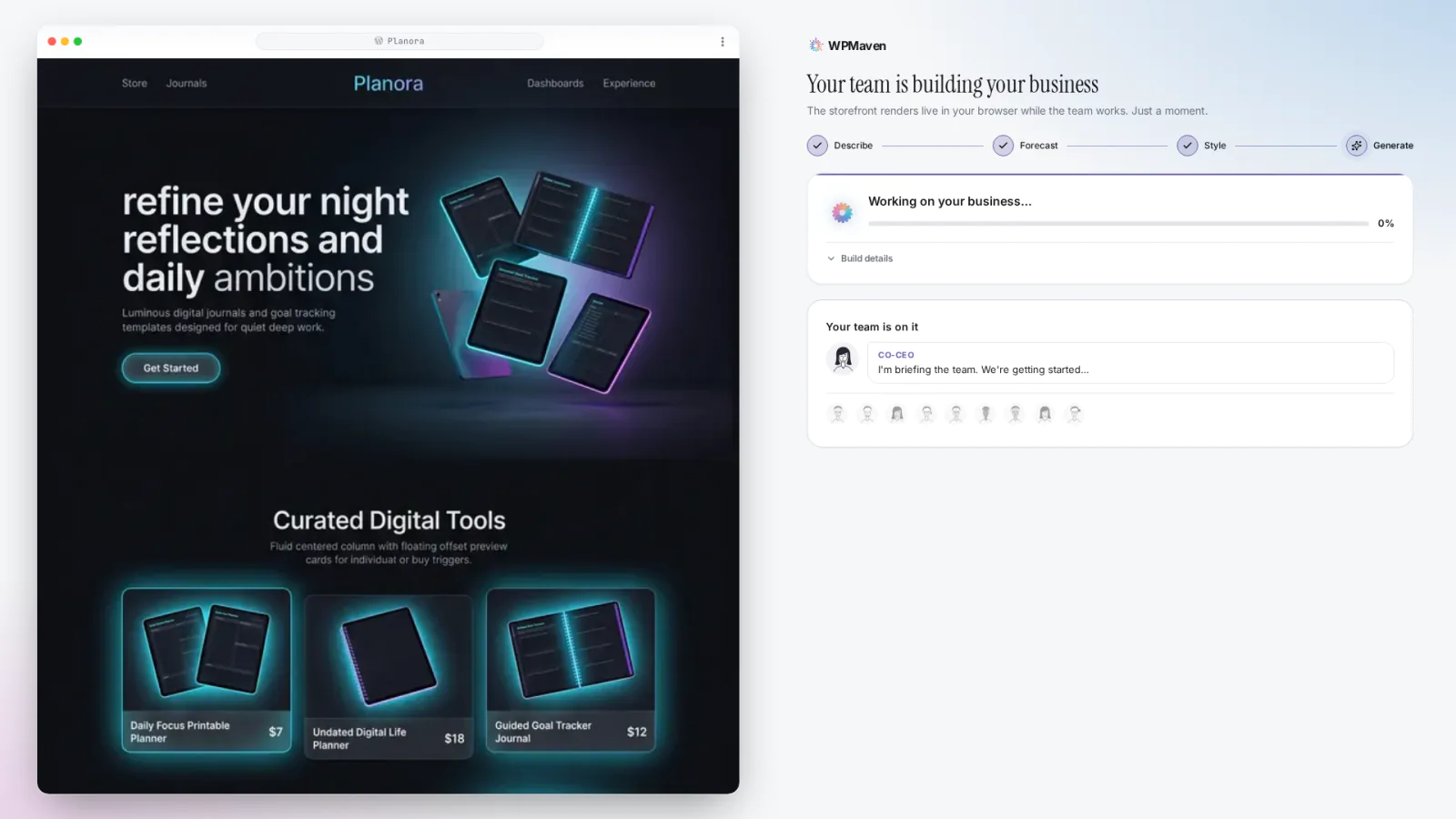
The team builds it
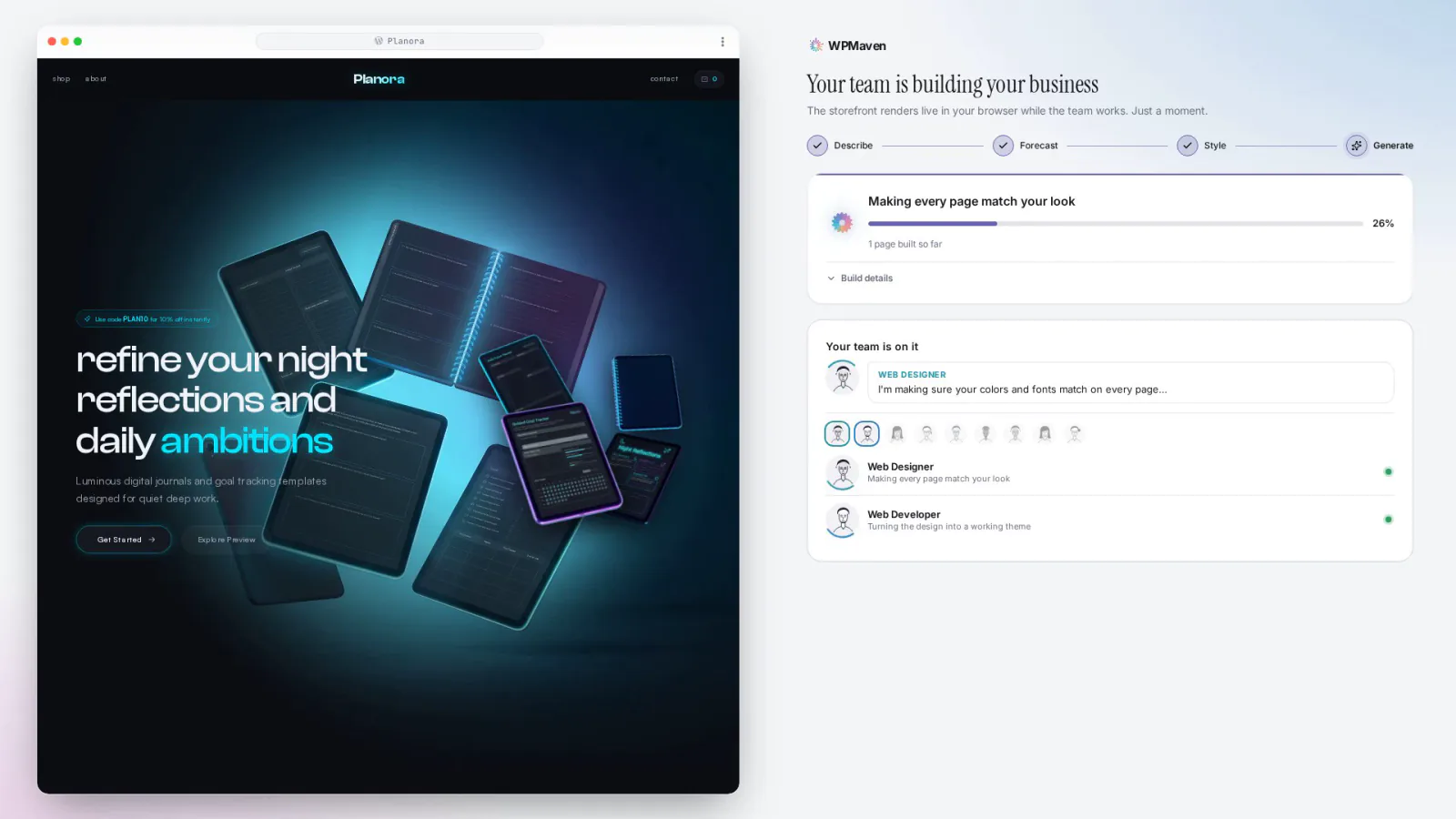
The team builds the site while you watch: the homepage first, then every page, a review of each page and the move into WordPress. The progress card on the right names the current phase.
-
Ready to launch
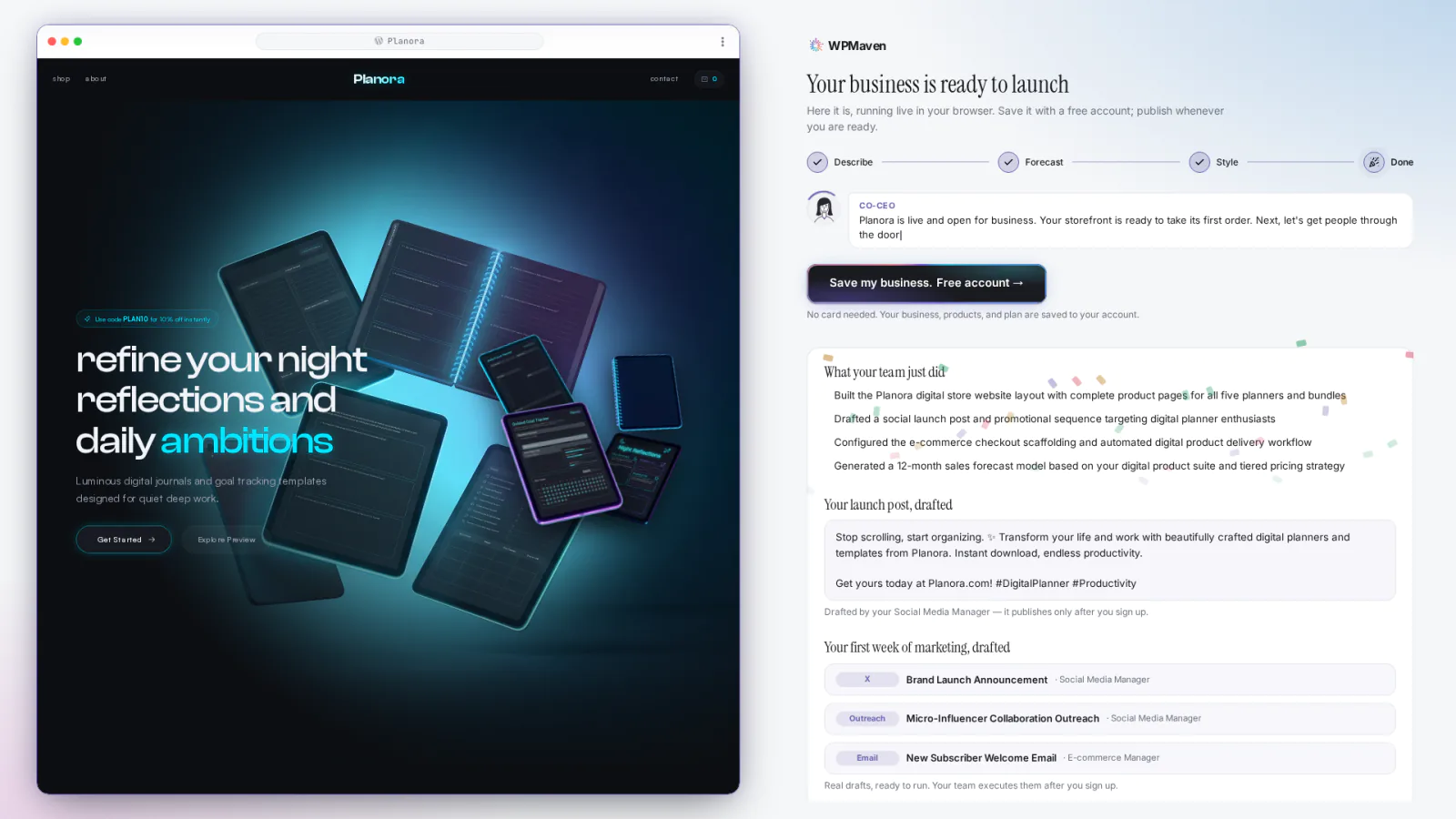
When the build ends you get the live preview, a list of what the team did, a drafted launch post and a first week of marketing tasks. The launch post and the marketing tasks are drafts: they go out only after you sign up.
Watch it get built.
A timelapse of the real build recording, sped up. It has no sound.
In the video: an idea is picked and goes into the box, WPMaven reads it back, the estimate is drafted, a style is picked, the site takes shape while the team builds it, and the Ready to launch screen appears.
Now build yours.
Describe your own business in a sentence and the team builds it while you watch. Free to build, no card to start.
The box opens with this sentence filled in. Change it to describe your own business.